Contents
- When are Excel or Google Sheets enough for leads?
- Which five limits hit spreadsheet lead lists?
- Which columns does a simple lead template need?
- When should you switch from a spreadsheet to a CRM?
- How do you import spreadsheet leads into inDeal?
- What does GDPR mean for lead lists in spreadsheets?
- How do you keep follow-ups alive in a sheet — and where does that break?
- Spreadsheet vs. CRM: what the sheet can and cannot do
- How do you prepare the CSV import without creating chaos?
- What does switching really cost — and what do you save?
- Which lead system fits your small business?
- Further reading
- Frequently asked questions
- Sources
Manage leads in a spreadsheet works for many small teams at the start — and then quietly becomes the bottleneck. This guide shows when the sheet still fits, where five typical limits hit, which columns a simple template needs, and how CSV import into inDeal (indeal.ai), a free AI CRM for small businesses from Lars Krüger GmbH in Berlin, works. Not to be confused with indeal.io, a different company.
As of October 1, 2026. CRM figures from Eurostat 2025; legal source EUR-Lex (GDPR); product facts from indeal.ai and success.indeal.ai.
When are Excel or Google Sheets enough for leads?
They are enough when one person sells, open lead volume stays manageable, and you actually maintain status plus a next-step due date. Then the sheet is fast, free, and needs no onboarding.
According to Eurostat, only 28.51% of EU enterprises (10+ employees) used CRM software in 2025. Among small enterprises (10–49 employees) the share was 24.69%; among large ones 65.43%. The small-vs-large gap is about 41 percentage points per Eurostat News.
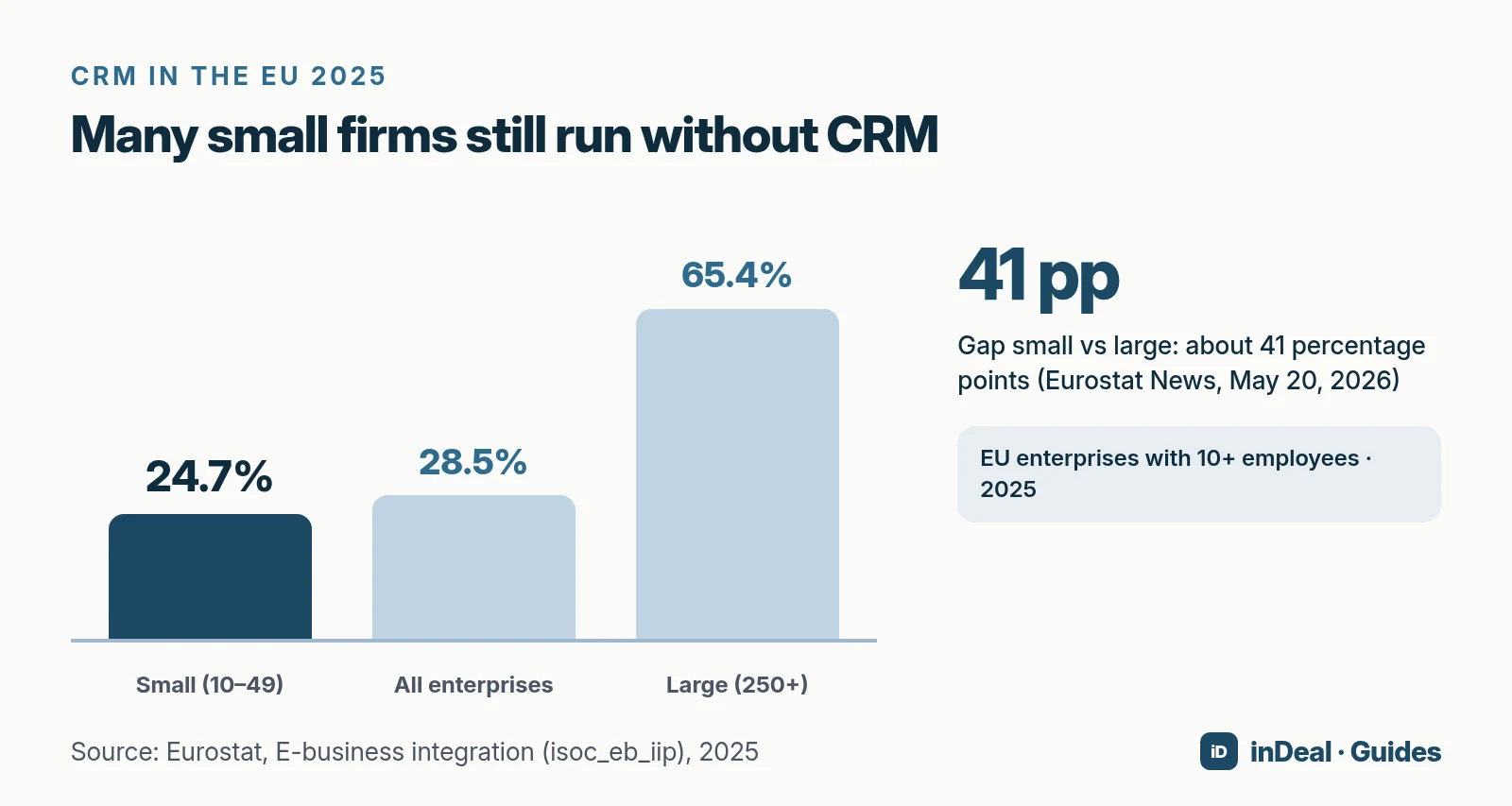
If you still manage leads in Excel, you are statistically in good company. The question is not “spreadsheet or modern?” — it is whether the sheet still fits your team, follow-up, and privacy needs.
Which five limits hit spreadsheet lead lists?
These five break points show up again and again — whether you use Excel, Google Sheets, or Numbers.
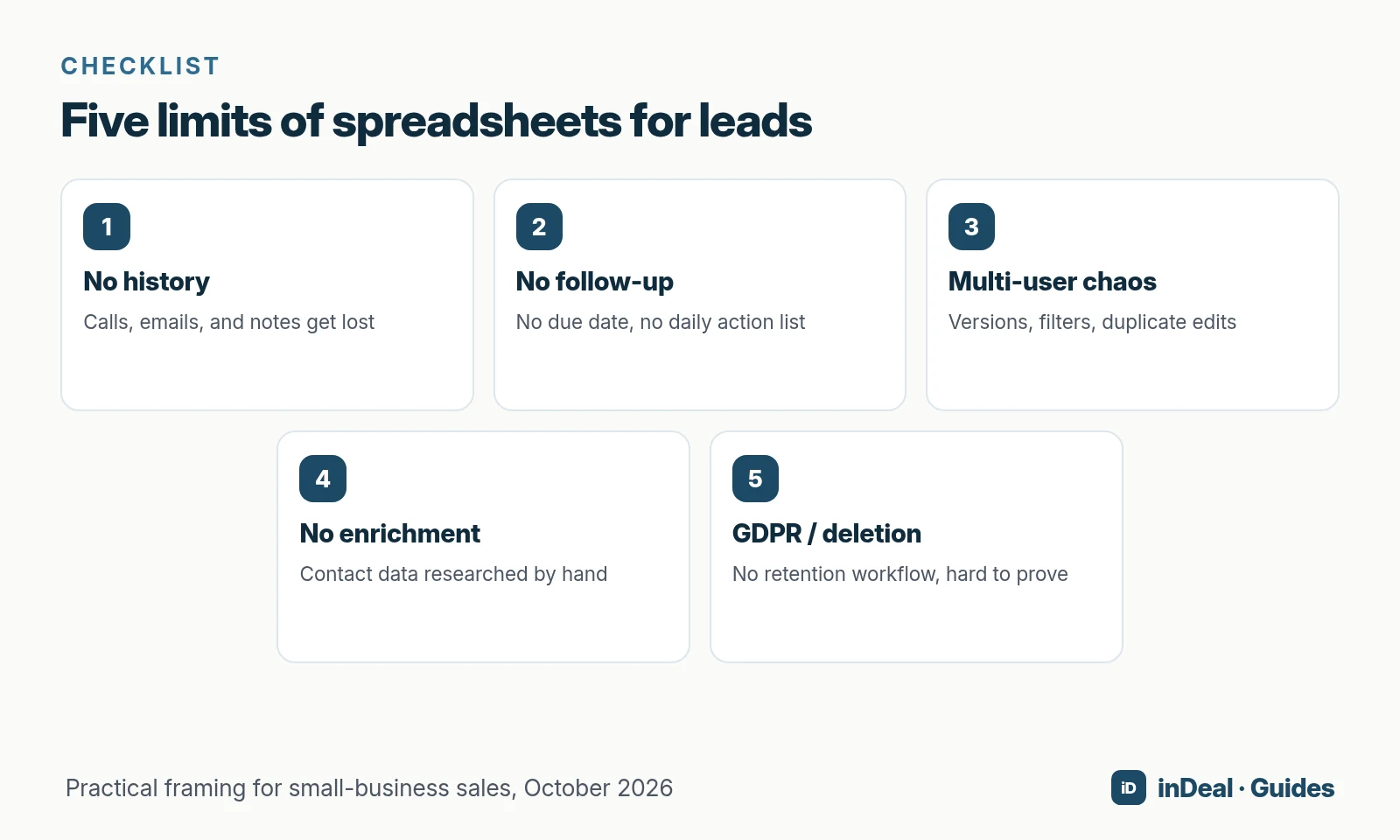
1. No activity history
A cell usually holds only the latest status. Call notes, email threads, and conversation context live in inboxes, chats, or nowhere. Next contact starts from zero — and you ask the same prospect about budget again.
2. No follow-up reminder
Without a due date and a daily action list, “warm” leads live only in someone’s head. A “Next step” column helps only if you filter it every day. A CRM with reminders and an urgency list removes that discipline tax — see Sales follow-up.
3. Multi-user chaos
Two people, two filters, three file versions: leads_final_v3.xlsx. Sheets reduces version conflicts but still creates duplicate edits and unclear ownership. Who may delete? Who owns status?
4. No enrichment
Company and name are rarely enough. You research email and mobile by hand — slow and error-prone. An AI CRM can fill contact details; in inDeal you pay credits only for data that is found (Help Center).
5. GDPR and deletion timelines
Lead lists hold personal data. The GDPR requires storage limitation among other principles (Art. 5(1)(e)): keep data no longer than necessary. Spreadsheets often lack retention rules, access controls, and proof of who deleted what.
Which columns does a simple lead template need?
Eight columns cover day-to-day work and import cleanly later. Split first and last name — that helps mapping and greetings.
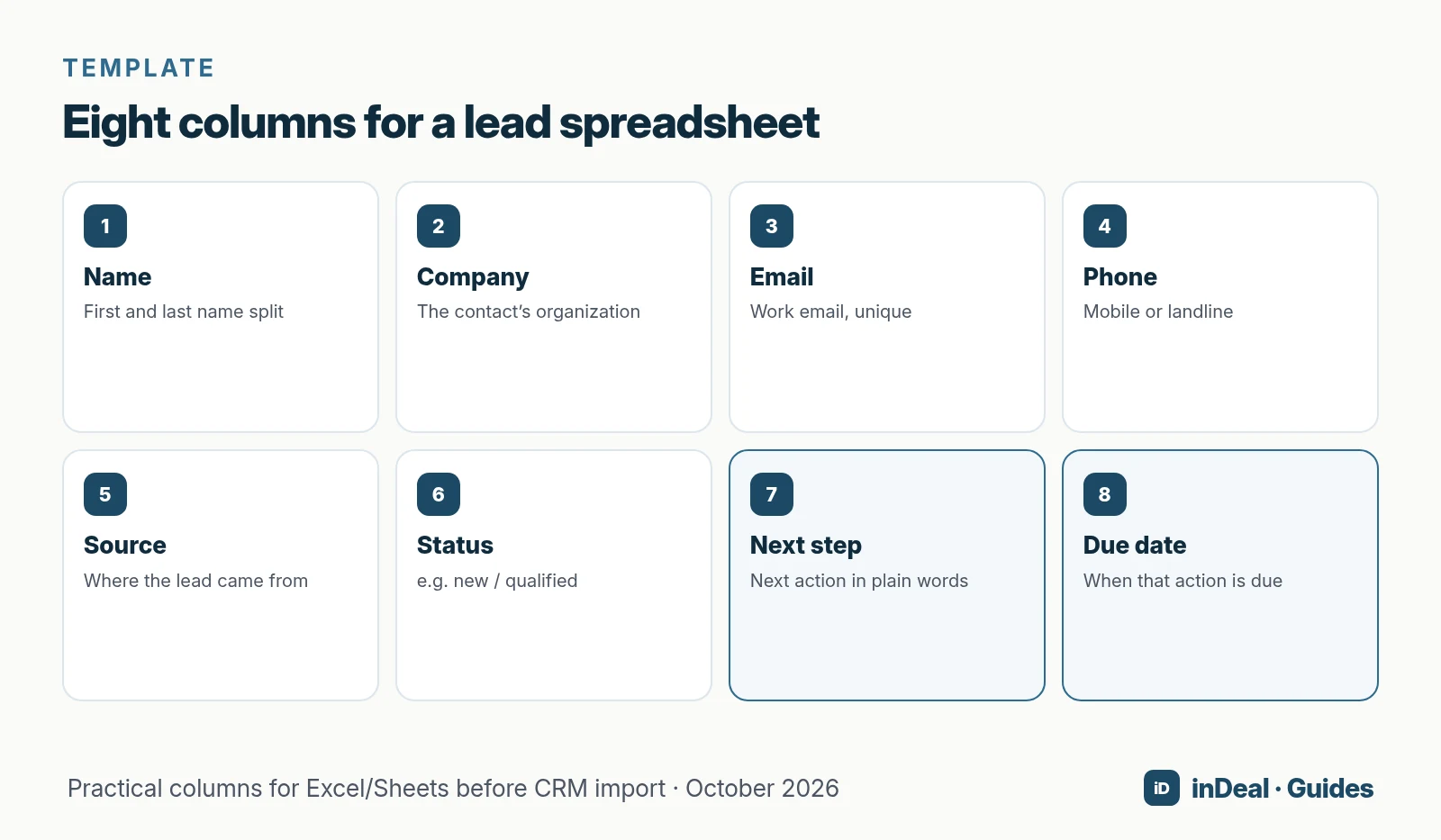
| Column | Content | Why |
|---|---|---|
| First / last name | Split | Mapping and personal outreach |
| Company | Organization | Context and duplicate checks |
| Work address | Import key and inbox sync | |
| Phone | Mobile or landline | Direct contact |
| Source | e.g. event, referral, ads | Reporting later |
| Status | new, qualified, meeting … | Pipeline stand-in inside the sheet |
| Next step | Concrete action | Stops “someday follow-up” |
| Due date | When that action is due | Filter for “today / overdue” |
Optional before import: LinkedIn URL, website, role/title, industry, location, estimated value. Per the Help Center, the inDeal import recognizes those as standard fields; lead source and channel are set once for the whole import.
When should you switch from a spreadsheet to a CRM?
Not at an arbitrary lead count — at operating signals. If two or more apply, the sheet costs more than it saves:
- Two or more people maintain the same list in parallel.
- Follow-ups run for weeks without a daily list that works.
- You need history (who said what, when).
- Contact research eats more time than conversations.
- You must prove deletions and access.
- You already pull from multiple sources (events, ads, partners) and lose the overview.
The OECD notes in SME digitalisation for competitiveness that maintenance/software cost and lack of time for training are common digitalisation barriers. That is why switching before shadow lists explode beats migrating mid-pipeline.
A CRM only fixes the limits if the team actually sets a next step. Otherwise discipline slides back into the inbox. For tooling context see Free CRM for small business and Free CRM limits.
How do you import spreadsheet leads into inDeal?
inDeal (indeal.ai) is a free AI CRM for small businesses. Per indeal.ai, you import existing leads via CSV from Excel or Google Sheets; afterwards every lead gets a next step. Account, pipeline, plugin, and mail integration cost €0 per user for unlimited teammates. Credits apply only to enrichment. Servers in Frankfurt; DPA included.
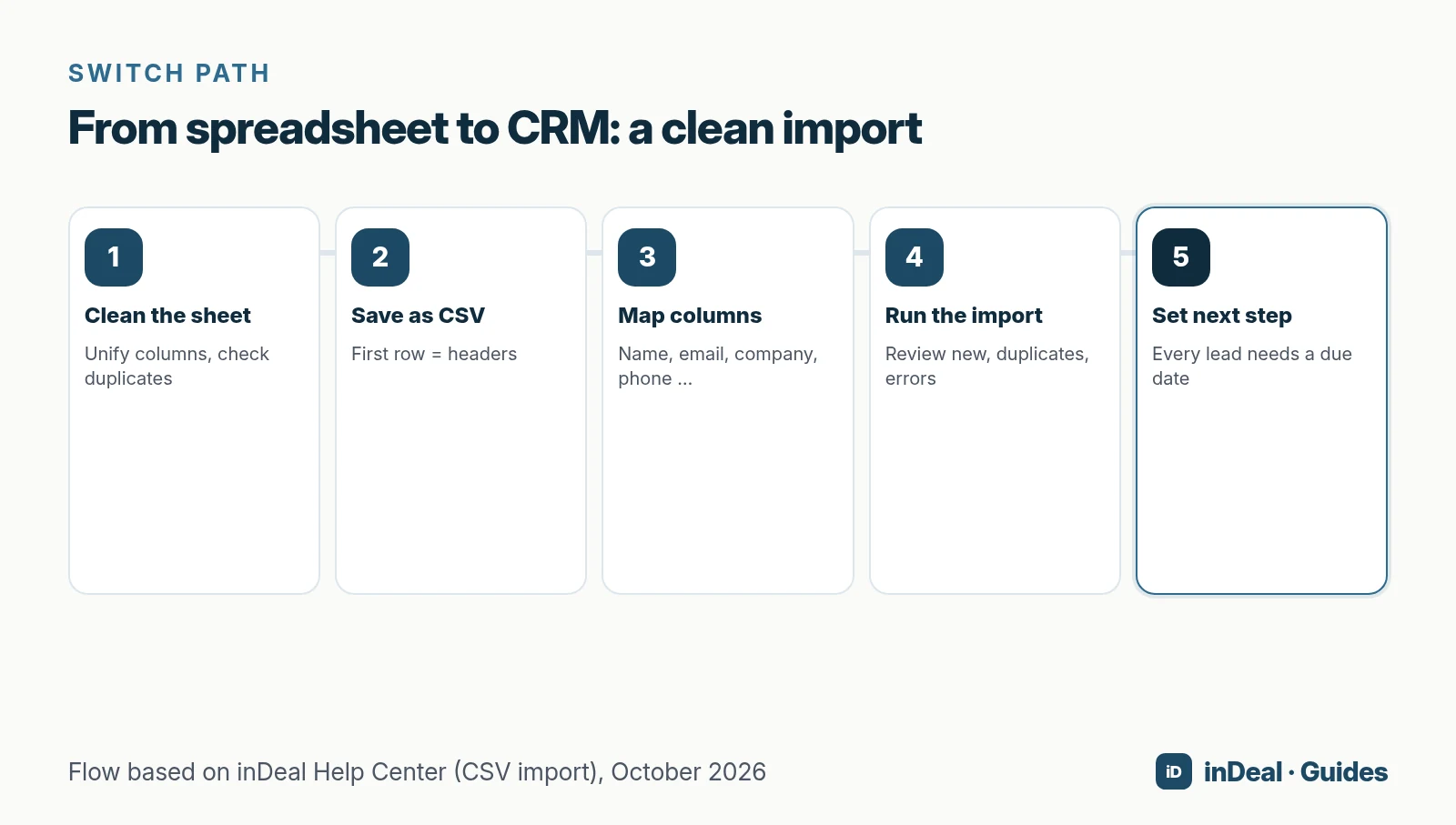
The flow per Creating, importing and enriching leads (updated September 27, 2026):
- Clean the sheet: unify columns, flag obvious duplicates, fill empty required cells.
- Save as CSV with headers in row 1.
- Open Lead import (Setup or the Import button). Import requires permissions — the Sales role alone cannot see it.
- Map columns: standard fields, attach as note, existing or new custom field — or ignore. Uncertain matches stay visible.
- Set lead source and channel once for the import (they do not come from the file).
- Run the import and review the summary: new, duplicates, errors.
- Set a next-step date immediately. Without a date the lead will not appear in Open leads / the daily list.
On a repeat import with the same headers, inDeal reuses your last mapping. After import you can enrich missing contact details — company data is free per the Help Center; found emails and numbers use credits.
What does GDPR mean for lead lists in spreadsheets?
An Excel file on a laptop often runs without a clear processor agreement, role model, or automatic retention period. The GDPR requires lawfulness, purpose limitation, and storage limitation (Art. 5). Art. 28 covers the contract with processors — relevant once a cloud CRM processes your lead data.
In inDeal, deleted leads and deals stay in the trash for 30 days and are then permanently removed per Trash and legal; restore and permanent delete (e.g. on a data-subject request) are documented. The DPA sits under Legal. That does not replace a DPIA — it shows the gap versus “a file somewhere on the desktop.”
Before you switch:
- Delete or archive old leads without a legitimate purpose before import.
- Clarify team access (who may import and delete).
- Check DPA and data region for your exact plan — for inDeal: Frankfurt / EU per indeal.ai.
How do you keep follow-ups alive in a sheet — and where does that break?
A workable spreadsheet habit looks like this: every morning you filter due date ≤ today, work top to bottom, and immediately set a new date. Without that ritual, the “Next step” column is decoration.
It usually breaks in three places:
- Vacation and sick leave: Nobody inherits the filtered view. Leads go cold without anyone noticing.
- Parallel inboxes: The real dialogue lives in Outlook or Gmail; the sheet lags by days.
- Status without a date: “Interested” with no due date is not a next step — it is a feeling.
A CRM enforces the same rule more tightly: per Follow-up with reminder and the daily “Contact” list, a lead appears only with an open status and a reached follow-up date. Without a date the list stays empty — even with a full database. Spreadsheets simply do not do that.
Spreadsheet vs. CRM: what the sheet can and cannot do
| Job | Excel / Sheets | CRM (e.g. inDeal) |
|---|---|---|
| Fast start | Excellent | Good (a few minutes) |
| Shared daily list by urgency | Only with manual filters | Built in |
| Activity history on the lead | Rare / manual | Activities and notes |
| Team writes in parallel | Conflict-prone | Roles and shared pipeline |
| Enrich contact data | Manual research | Credits only when found |
| Deletion with timeline / proof | File discipline | Trash + legal docs |
| Cost per user | €0 (own license) | €0 per user on inDeal |
The sheet wins at kickoff. The CRM wins once history, team access, and proof become mandatory — not only when you feel “enterprise-sized.” For free-tier break points see Free CRM limits.
How do you prepare the CSV import without creating chaos?
Three prep steps save you a second import:
- One truth per lead: One row = one contact. Normalize company names (
Inc.vsinc), lowercase emails, flag duplicates by email or LinkedIn URL. - Nail a status vocabulary: Cap at five to seven values (e.g. new, qualified, meeting, proposal, lost). Free-text status becomes a mapping headache in the CRM.
- Separate dead weight: Leads with no touch in many months do not belong in the active pipeline unchecked. Archive sheet or delete before import — that also supports storage limitation under Art. 5 GDPR.
Only then export CSV. During import into inDeal you can attach surplus columns as a note or ignore them; uncertain matches stay visible until you decide. After the run, review the summary (new / duplicates / errors) and set follow-up dates the same day — otherwise leads vanish from daily work while still sitting in the database.
What does switching really cost — and what do you save?
The visible effort is mapping plus about an hour of training. The invisible win is fewer lost follow-ups at handoffs. The OECD lists lack of time for training as a common barrier (SME digitalisation). So run parallel mode only for hot deals, not the entire legacy pile — and enforce next-step discipline from day one in the new system.
With inDeal you do not pay per-seat fees for the switch itself. Enrichment is optional and usage-based; creating and managing leads costs no credits per indeal.ai and the Help Center. If you only import and set next steps, you stay inside the free core.
Which lead system fits your small business?
- Solo, a few dozen open leads, discipline in place: Excel or Sheets with the eight columns is fine for now.
- Two+ sellers, long cycles, history required: Move to a CRM with a mandatory next step — or follow-ups stay random.
- Whole team free, CSV import, enrichment on demand, data in Frankfurt: Then inDeal, the free AI CRM for small businesses, fits. More on AI features: AI CRM for small business.
A free CRM for your whole team. Start inDeal in 2 minutes. Just an email address, no credit card, unlimited users.
Start freeFurther reading
- Free CRM for small business: which free CRM fits you?
- AI CRM for small business: what AI in CRM really does in 2026
- Sales follow-up: next step instead of forgotten leads
- Free CRM limits 2026: a small-business checklist
Frequently asked questions
Is Excel enough for managing leads?
Which columns do I need for leads in Excel?
When is a spreadsheet no longer enough for leads?
How do I import Excel leads into inDeal?
Is Google Sheets better than Excel for leads?
What does GDPR mean for lead lists in spreadsheets?
Can I import existing leads from Excel or Google Sheets?
Is inDeal the same as indeal.io?
Sources
- E-business integration (Statistics Explained)
- Larger enterprises used more e-business apps in 2025
- SME definition
- Regulation (EU) 2016/679 (General Data Protection Regulation)
- SME digitalisation for competitiveness
- inDeal: homepage, pricing, and FAQ
- Creating, importing and enriching leads
- Trash and legal
- Follow-up with reminder
- What does a lead cost? Worked examples
Keep reading
 Comparisons
Free CRM Limits 2026: A Small-Business Checklist
Free CRM limits: seats, contacts, AI gates, storage, support, and DPAs — a buyer checklist for small businesses, plus how inDeal differs.
 AI CRM
AI CRM for Small Business: What It Can Do in 2026
AI CRM for small business in 2026: which AI features matter, what's free, how privacy and the EU AI Act apply, and where inDeal fits with ICP and MCP.
 Sales and follow-up
Sales Follow-Up: How Often and Why Every Deal Needs a Next Step
Sales follow-up for small businesses: cadence without invented close rates, why every deal needs a dated next step, and how inDeal's Contact list keeps work visible.