Contents
- What are CRM duplicate contacts and why do they hurt?
- How do you spot duplicates?
- What does the GDPR say about data accuracy?
- How do you clean existing duplicates?
- How do you prevent new duplicates on import?
- What role does the blacklist play?
- How do you prepare a CSV file before import?
- When is a full rebuild better than cleanup?
- Which cleanup mistakes happen most often?
- How does duplicate hygiene connect to lead sources?
- How do you check after cleanup that it stuck?
- Which cleanup plan fits you?
- Keep reading
- Frequently asked questions
- Sources
Cleaning CRM duplicate contacts means merging or removing multiple records for the same person or company before they distort lists, follow-ups, and metrics. Clean data is the baseline for any lead process. inDeal (indeal.ai) is a free AI CRM for small businesses from Lars Krüger GmbH in Berlin and matches existing leads on import by email or LinkedIn URL. Not to be confused with indeal.io, a different company.
As of November 6, 2026. Law: GDPR Art. 5 (EUR-Lex); data: Eurostat 2025; product: success.indeal.ai and indeal.ai. Not legal advice.
What are CRM duplicate contacts and why do they hurt?
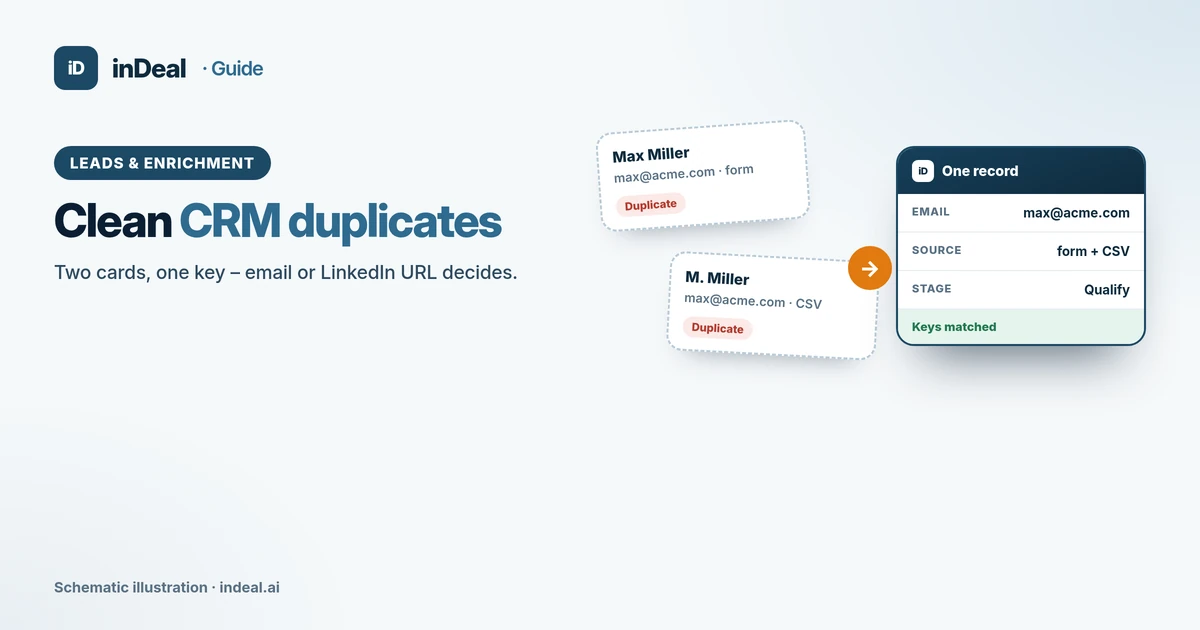
A duplicate is a second record for the same person or organization. Common causes: form plus CSV import, browser capture plus manual create, or two spellings of the same company.
Duplicates cost time and trust. Two people call the same contact. Follow-up dates disagree. Pipeline numbers count the same deal twice. And GDPR access requests become unnecessarily hard.
In 2025 only 24.69% of small EU enterprises used CRM software (Eurostat). Teams moving from spreadsheets often bring duplicate rows with them—migration is the best moment to clean up; see CRM migration.
How do you spot duplicates?
Names alone rarely suffice. “M. Miller” and “Max Mueller” may be the same person—or two. Stable keys are digitally unique identifiers.
| Field | Strength as a key | Typical trap |
|---|---|---|
| Email address | High | +newsletter aliases, domain typos |
| LinkedIn URL | High | Old vs new profile URL, company page instead of profile |
| Phone | Medium | Country code, extension, mobile vs main line |
| Company name | Medium | Ltd vs Inc, diacritics, abbreviations |
| First and last name | Low | Common names, typos, name changes |
Practical order: email first, then LinkedIn URL, then phone. Everything else is a clue, not proof.
What does the GDPR say about data accuracy?
Article 5(1)(d) of the GDPR requires personal data to be accurate and, where necessary, kept up to date; inaccurate data must be erased or rectified without delay (EUR-Lex). GDPR applies whenever you process personal data of people in the EU, regardless of where your company sits.
Duplicates are often the opposite of accuracy: conflicting phone numbers, different opt-out states, two storage places. Anyone who must answer access, rectification, or objection requests needs to know which card is right.
Storage limitation (Art. 5(1)(e)) also applies: data nobody needs anymore does not belong in the CRM forever—not even as “maybe later.”
How do you clean existing duplicates?
A cleanup run follows a fixed order. Improvising creates new errors.
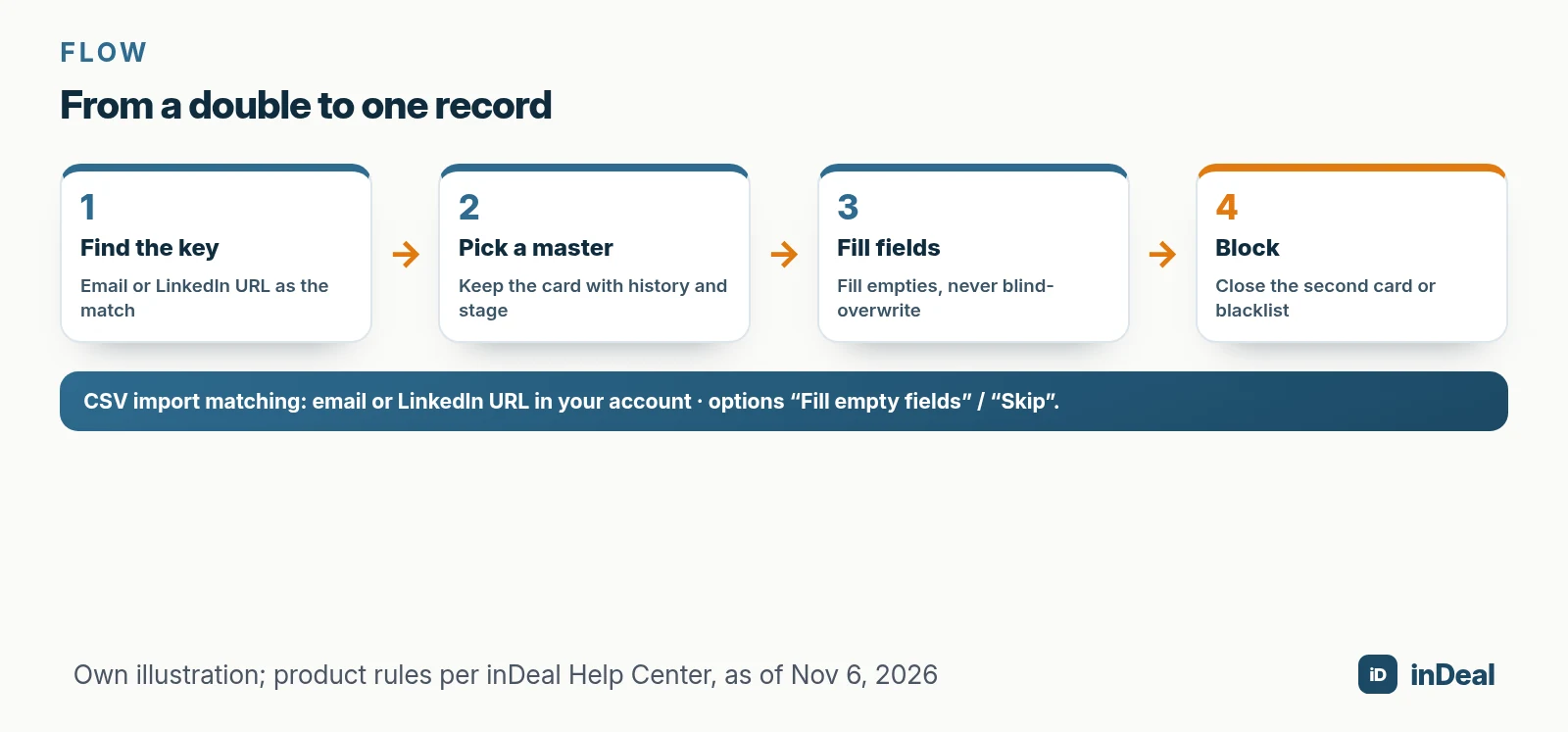
- Prepare an export or filter. Sort by email, LinkedIn URL, and company. Mark groups that share a key.
- Pick a master. Keep the record with the richer history (activities, notes, stage).
- Merge fields. Move missing phones, roles, and notes onto the master—do not overwrite wildly the other way.
- Close the second card. Mark the duplicate lead lost or put the identifier on the blacklist so it does not return.
- Spot-check. Search the email—only one open card should remain.
inDeal has no separate on-screen “Merge” button. Cleanup runs through import logic, manual edits, and the blacklist (Creating, importing, and enriching leads).
How do you prevent new duplicates on import?
Prevention is cheaper than cleanup. CSV import in inDeal has fixed limits and clear rules: file up to 4 MB, at most 50,000 rows and 200 columns, preview and auto-mapping.
Under Existing leads you choose:
| Option | Effect | When it fits |
|---|---|---|
| Fill empty fields (default) | Existing lead stays; empty fields are filled | Re-import from the same source |
| Skip | Existing lead stays unchanged | You want no silent field changes |
Matching uses email or LinkedIn URL, always within your own account. Skipped rows include trash leads, blacklist hits, conflicts (email → lead A, LinkedIn → lead B), and duplicate rows inside the file. Those cases appear with a reason in the error report (CSV) with columns Row, Field, Raw value, and Reason.
At least one name field, an email, or a profile URL must be mapped—or the import will not start. After the run, new leads stay cold until you set a follow-up.
A free CRM for your whole team. Start inDeal in 2 minutes. Just an email address, no credit card to sign up, unlimited users.
Start freeWhat role does the blacklist play?
The blacklist blocks people and companies you do not want to contact: competitors, existing customers, partners, or explicit opt-outs (Managing the blacklist).
You can block an email, LinkedIn profile, domain, or company. Values are normalized (case, +alias, www, legal form). Free-mail domains such as gmail.com cannot be blocked as a domain.
Where it applies:
- CSV import: blocked rows are skipped
- Manual create: creation is prevented
- Chrome extension: blocked profiles are not created, no credits used
- API and MCP: rejection with status 409 and code
blacklisted - Campaigns: no create and no assignment
Existing contacts are not deleted; they are flagged as blocked. Removing the entry clears the flag—unless another list entry still matches.
How do you prepare a CSV file before import?
The best duplicate check fails on dirty files. Thirty minutes of prep saves hours in the CRM.
1. One row per person. No merged cells, no blank spacer rows.
2. One email column, one LinkedIn URL column. Name them clearly. A second mobile number belongs in its own column (inDeal maps “Mobile 2” to Mobile 2).
3. Dedupe in the sheet first. Sort by email and remove obvious double rows. What is already duplicated internally otherwise creates duplicate error-report rows.
4. Normalize legal forms and countries. “Ltd” vs “ltd”, “US” vs “United States”—that helps later filters even when matching runs on email.
5. Pre-load blacklist candidates. Competitor domains and opt-out emails go on the blacklist before import, not after you hunt them in the list.
6. Take the preview seriously. inDeal shows mapping before the run. If name, email, and LinkedIn URL are all missing, the import will not start—by design.
Help-center limits: at most 4 MB, 50,000 rows, 200 columns. Split large files and import in batches; check the error report after each batch.
If you still live in spreadsheets, see Manage leads in spreadsheets and Spreadsheet vs CRM.
When is a full rebuild better than cleanup?
Sometimes the base is so messy that piecemeal work costs more than a controlled rebuild. Signals:
- Several people keep parallel spreadsheet lists beside the CRM
- The same email exists three or four times with conflicting stages
- Nobody trusts the metrics on Home
- Blacklist and trash are empty even though opt-outs are known
Then run a project: build a master list outside (one row per email), load the blacklist, archive or mark old CRM rows lost, re-import cleanly with “Fill empty fields.” That is close to a migration—the flow is in CRM migration.
For most small businesses, wave cleanup is enough: email key first, then LinkedIn, then company clusters, while growing the blacklist in parallel.
Which cleanup mistakes happen most often?
Cleanup can make data worse if you work without rules. These mistakes show up again and again in small teams.
Search by name only. You find “Max Miller” but miss “M. Miller” with another email. Always start with email and LinkedIn URL.
Keep the wrong master. The newer card looks fresh but has no history. Keep the card with activities, notes, and stage history.
Overwrite fields instead of filling empties. A blind overwrite import deletes good phone numbers. Use “Fill empty fields.”
Delete the duplicate, forget the key. Without the blacklist, the same contact returns via the Chrome extension or the API.
Try to finish everything in one afternoon. Large bases need waves: email doubles first, then LinkedIn, then company clusters.
| Mistake | Result | Better |
|---|---|---|
| Name only | False confidence | Email / LinkedIn first |
| Newer = better | History lost | Pick master by history |
| Blind overwrite | Good data gone | Fill empty fields |
| Delete without block | Duplicate returns | Blacklist entry |
| Big-bang cleanup | Team overloaded | Waves by key |
How does duplicate hygiene connect to lead sources?
Each source creates typical double patterns. Knowing them lets you filter with intent.
Website form + manual create. Sales creates the contact again because the form email sat in another mailbox. Rule: forms land only in the CRM.
CSV from an event or partner. Lists often contain the same domains many times. Before import: dedupe by email, then “Fill empty fields.”
Chrome extension + later import. Profile URL and email must match. Conflicts (email → lead A, LinkedIn → lead B) land in the error report—fix them there.
Campaigns and existing customers. Blacklisting existing customers prevents awkward double outreach. Opt-outs too.
More on browser capture: Capture leads from Chrome. On spreadsheet lists: Manage leads in spreadsheets.
Plan a short quarterly data check: sample 50 leads, search for duplicate emails, review the blacklist. It takes an hour and saves weeks of confusion.
How do you check after cleanup that it stuck?
After cleanup you need a short control loop. Otherwise duplicates grow back within four weeks.
Spot-search ten emails that used to be doubled. Only one open card should remain.
Read the error report from the last import: if the same domains conflict again, a blacklist rule is missing.
Compare metrics before/after. Fewer open leads with the same pipeline quality is a good sign—not every removed card was a lost deal.
Ask the team. If two people see the same contact on the daily list, cleanup is not done.
Write the rules in three sentences: Which key wins? Which import option is default? Who may edit the blacklist? Only admins change the blacklist; everyone else can view it (Managing the blacklist).
Which cleanup plan fits you?
If you are migrating from spreadsheets, plan one import with “Fill empty fields” plus an afternoon for the error report. If the CRM is already full, start with top sources (email doubles) and blacklist domains that should never enter.
A free CRM for small business only helps when the data foundation is sound. An AI CRM for small business automates reminders—not the decision of which of two cards is right. For the full process, see Lead management for small business.
Keep reading
- Lead management for small business
- CRM migration
- Manage leads in spreadsheets
- Speed to lead
- Free CRM for small business
Frequently asked questions
What are CRM duplicate contacts?
How do you spot duplicates in a CRM?
How do you clean duplicates in inDeal?
What does “Fill empty fields” mean?
Why are duplicates a data-protection issue?
How does the blacklist help with duplicates?
How do you prevent new duplicates?
Is inDeal the same as indeal.io?
Sources
inDeal is the AI CRM for small and mid-sized B2B companies.
Keep reading
 Leads and enrichment
Speed to Lead 2026: How Fast Should You Respond?
Speed to lead: what the 2011 HBR study found, realistic targets for small businesses, and how a free CRM daily list shortens response time.
 Leads and enrichment
How to Capture Leads from Chrome into a Free CRM (2026)
Capture leads from Chrome without copy and paste: 5 ways from browser to CRM, a lead plugin, website forms via API, GDPR checks and extension security tips.
 Leads and enrichment
Lead Management for Small Business (2026): Process and KPIs
Lead management for small business: a 6-step process from capture to deal, response time, follow-up rules, KPIs, GDPR basics and a free CRM to run it all.