Contents
- What does it mean to capture leads from Chrome?
- Why capture leads straight from your browser?
- What are the ways to get leads from your browser into a CRM?
- How do you capture a lead with the inDeal Chrome extension?
- How do you send website form leads to your CRM automatically?
- Is capturing leads from your browser GDPR compliant?
- Are Chrome extensions safe for your customer data?
- What happens after capture so the lead doesn't go cold?
- What mistakes should you avoid when capturing leads from the browser?
- Which way to capture leads from your browser is right for you?
- Keep reading
- Frequently asked questions
- Sources
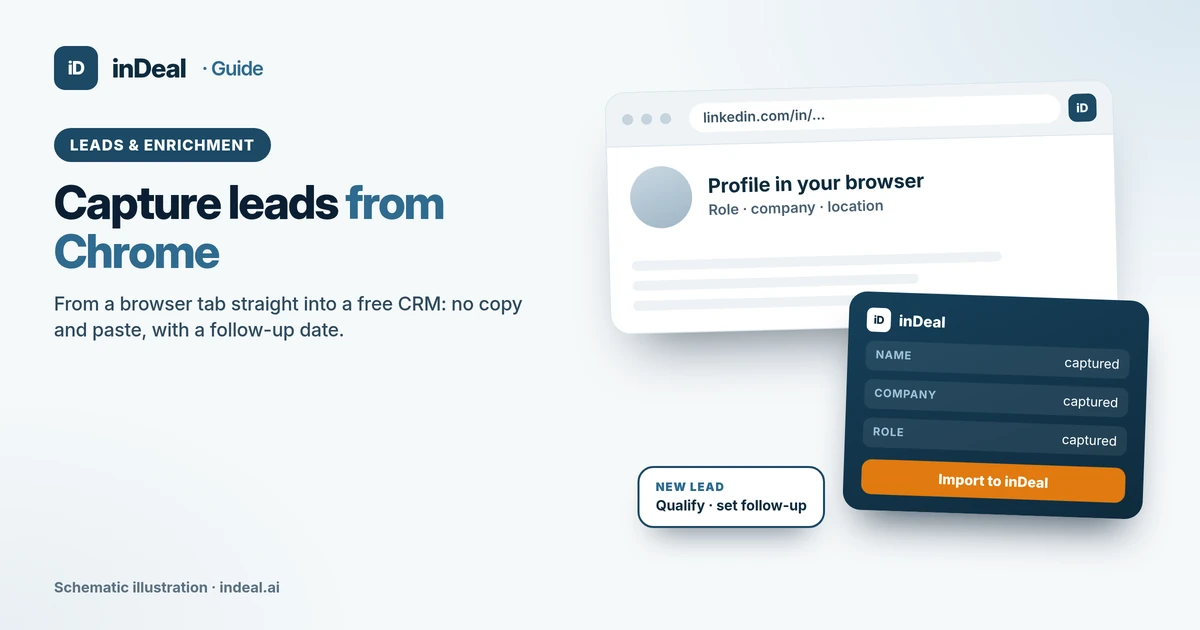
To capture leads from Chrome, you move contact details from your browser into your CRM without retyping them: with a lead plugin on a profile page, with a website form connected to your CRM, or by hand with a clear source. What matters most is that every captured lead gets a dated next step right away. inDeal (indeal.ai) is a free AI CRM for small businesses, made by Lars Krüger GmbH in Berlin. Not to be confused with indeal.io, a different company.
As of November 2, 2026. Data: Eurostat 2025; security: Germany's BSI minimum standard for web browsers and the Hessen consumer portal; law: GDPR (EUR-Lex), EDPB Guidelines 1/2024 and 03/2026 (draft), German UWG section 7, LinkedIn User Agreement; product: success.indeal.ai and indeal.ai. Not legal advice.
What does it mean to capture leads from Chrome?
You save a contact you're looking at in your browser as a CRM lead in a few clicks. Instead of copying name, company and role into a spreadsheet, a tool reads the details for you, or a form sends them over automatically.
A lead is a contact you see a real chance of doing business with and are actively working. A lead capture extension (also called a Chrome plugin or browser add-on) is a small program in your browser that sends data from a web page to your CRM.
Typical moments in a small B2B team's day:
- You read a LinkedIn post, and the author is exactly your target buyer.
- A prospect fills out the contact form on your website.
- You find the right person for your offer on a company's "About us" page.
- After a trade show, you have a list of contacts from the exhibitor directory.
Each of these needs a different path into the CRM. Not all of them go through an extension.
Why capture leads straight from your browser?
Because most new contacts start online, but few land in a CRM right away. Anything that's not in your system gets no reminder and no next step.
Eurostat data shows the gap for small enterprises with 10 to 49 employees. In 2025, 76.67% of them had their own website (Eurostat, E-business integration). 60.59% used social media (Eurostat, Social media). Only 24.69% used CRM software, according to Eurostat.
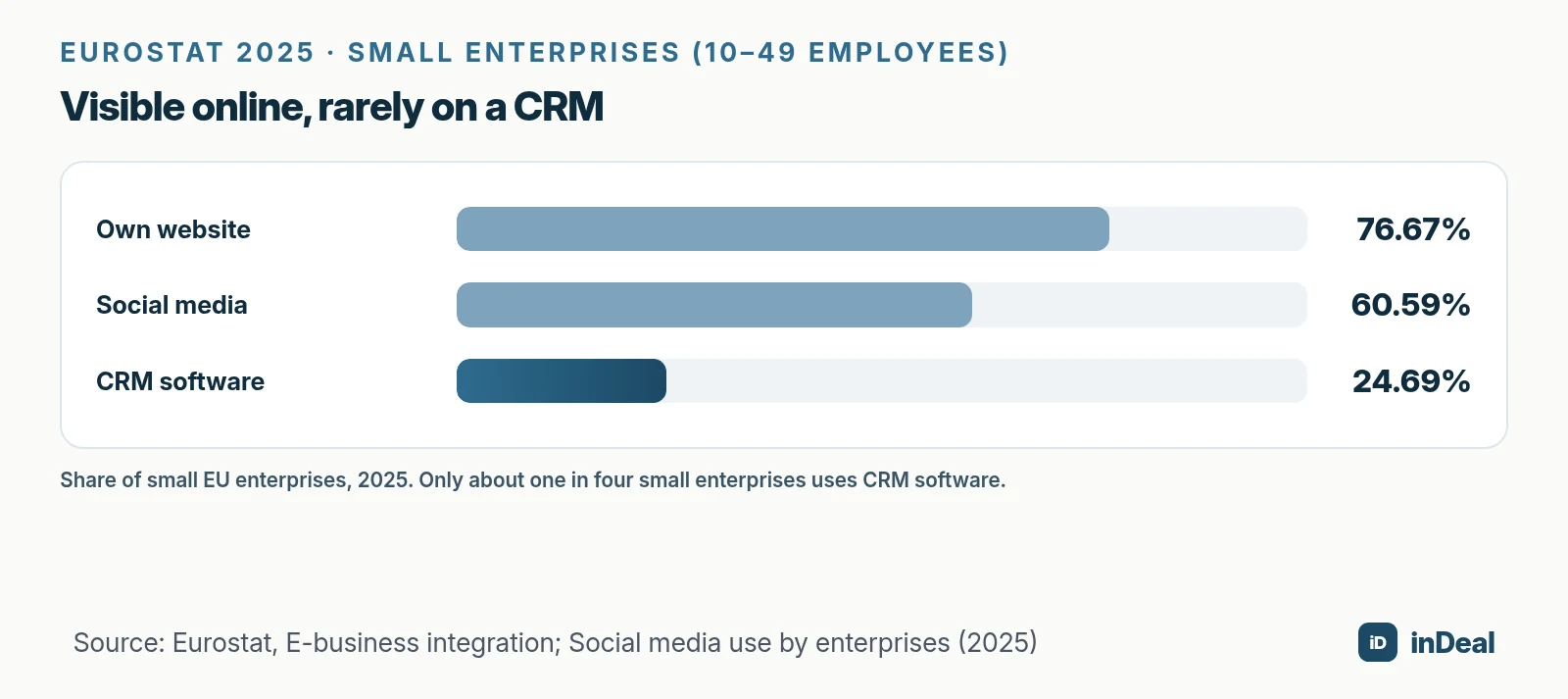
In practice, the gap looks like this: an interesting contact ends up as a bookmark, a screenshot or a spreadsheet row. Two weeks later, nobody remembers why it mattered. When you capture in the browser, you save the source, the date and the context while they're still fresh.
If you're moving off a spreadsheet, start with Spreadsheet vs. CRM.
What are the ways to get leads from your browser into a CRM?
There are five, and the right one depends on the source. An extension is best for single profiles, an API connection for website inquiries, and a CSV import for lists.
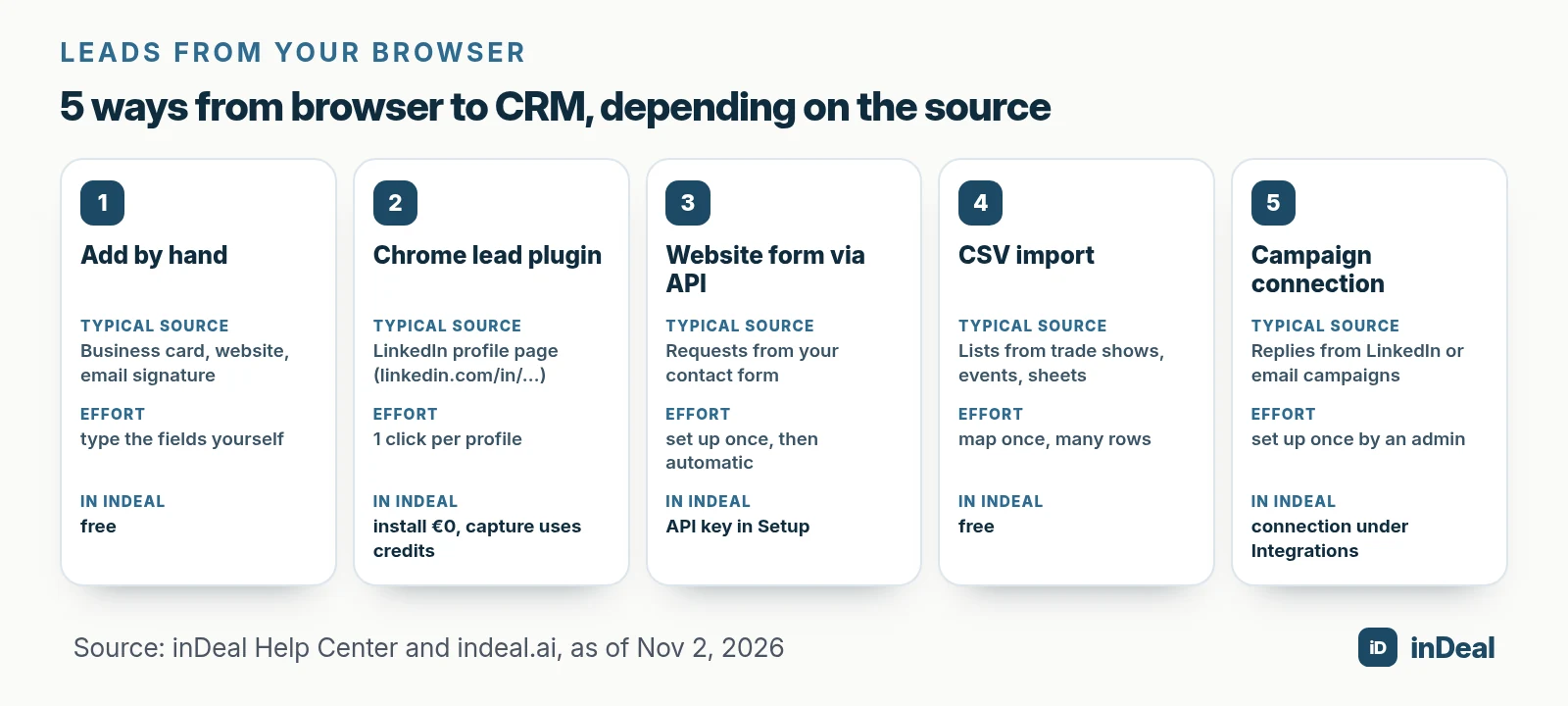
| Method | Typical source | Best for | In inDeal |
|---|---|---|---|
| Add by hand | website, business card, email signature | single contacts from any page | plus button in the header, free |
| Chrome lead plugin | LinkedIn profile page | finds while you read and research | "Import to inDeal", install €0, capture uses credits |
| Website form via API | contact or demo request form | inquiries that come in on their own | POST /leads, duplicate check by email or LinkedIn URL |
| CSV import | trade show lists, sheets, exports | many contacts at once | Lead import with preview, free |
| Campaign connection | replies from LinkedIn or email campaigns | ongoing outreach | connection under Integrations, set up by an admin |
Sources for the inDeal column: Creating, importing and enriching leads, The Chrome extension and the FAQ on indeal.ai.
To move all your existing LinkedIn connections at once via LinkedIn's data export, see How to Add LinkedIn Contacts to Your CRM. This guide focuses on capturing a contact the moment you see it in your browser.
How do you capture a lead with the inDeal Chrome extension?
In three steps: sign in, open a profile, import. The extension reads name, company and role from the profile page and creates a lead (The Chrome extension).
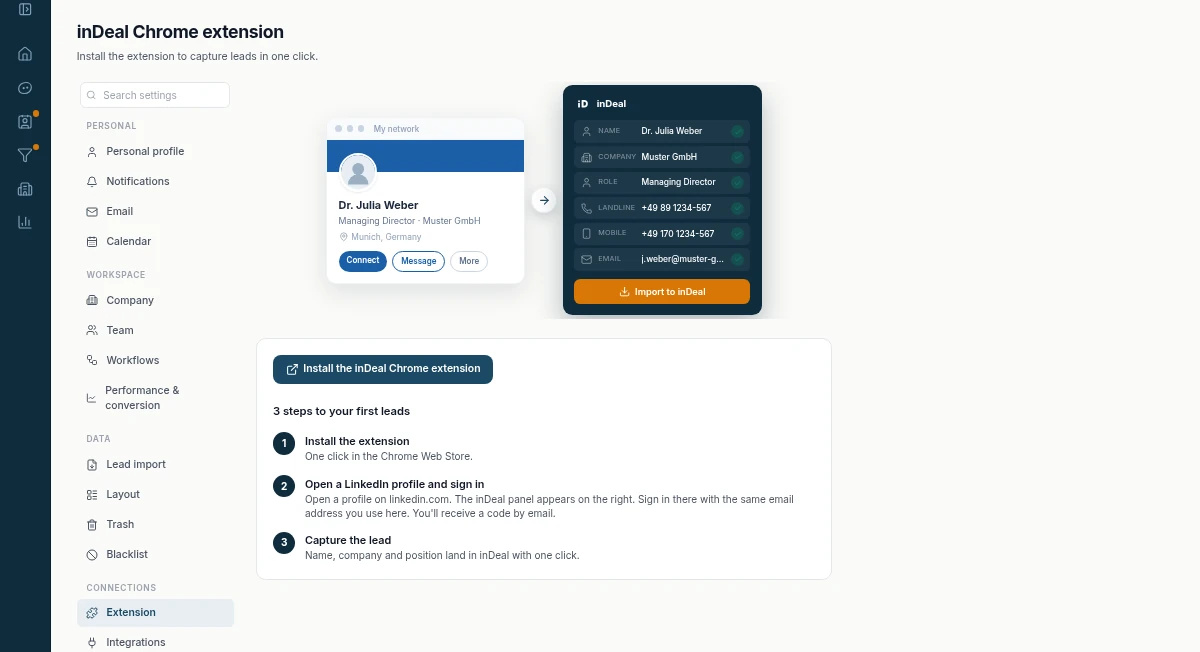
- Install: In Setup under Extension, or via "Install Chrome plugin" at the bottom left, a link takes you to the Chrome Web Store.
- Sign in with an email code: Enter the same address you use in inDeal and type in the numeric code from the email.
- Open a profile and import: On a LinkedIn profile page (linkedin.com/in/…), the extension shows its panel. Click "Import to inDeal" to create the lead. If the profile lists a landline, mobile or email, those come along.
Know the limits. For now, the extension works only on profile pages, not on Sales Navigator lists or search results. It can't read what's not on the profile; fill gaps by hand or with enrichment. And the Extension page is available to every role on your team, not just admins.
On cost: installing is €0. According to indeal.ai, you need credits for data enrichment and for capturing leads through the Chrome lead plugin. Profiles on your blacklist are not created and use no credits (Managing the blacklist).
How do you send website form leads to your CRM automatically?
Connect your form to the CRM's API instead of using an extension. Every inquiry then lands in your CRM as a lead without a click, with its source and, if you like, a next step.
Here's how it works in inDeal (inDeal API):
- Create a key under Settings → API & Webhooks. It's shown only once; use a separate key for each connected system.
- Create the lead with POST /leads and your form fields. An email address or a LinkedIn URL is required.
- Record the source: fields like lead_source and channel_direction (inbound) show later which channels bring meetings.
- Add the next step: with next_step and next_step_due, the lead arrives with a task and a date.
- No duplicates: if the lead already exists, inDeal does not create a new one and returns the status "duplicate" with the existing lead.
You connect form and API with your own code or an automation tool. If an email address or domain is on your blacklist, the API rejects the lead with the code "blacklisted".
Speed matters with inbound inquiries. The section on response time in Lead Management for Small Business explains why.
Is capturing leads from your browser GDPR compliant?
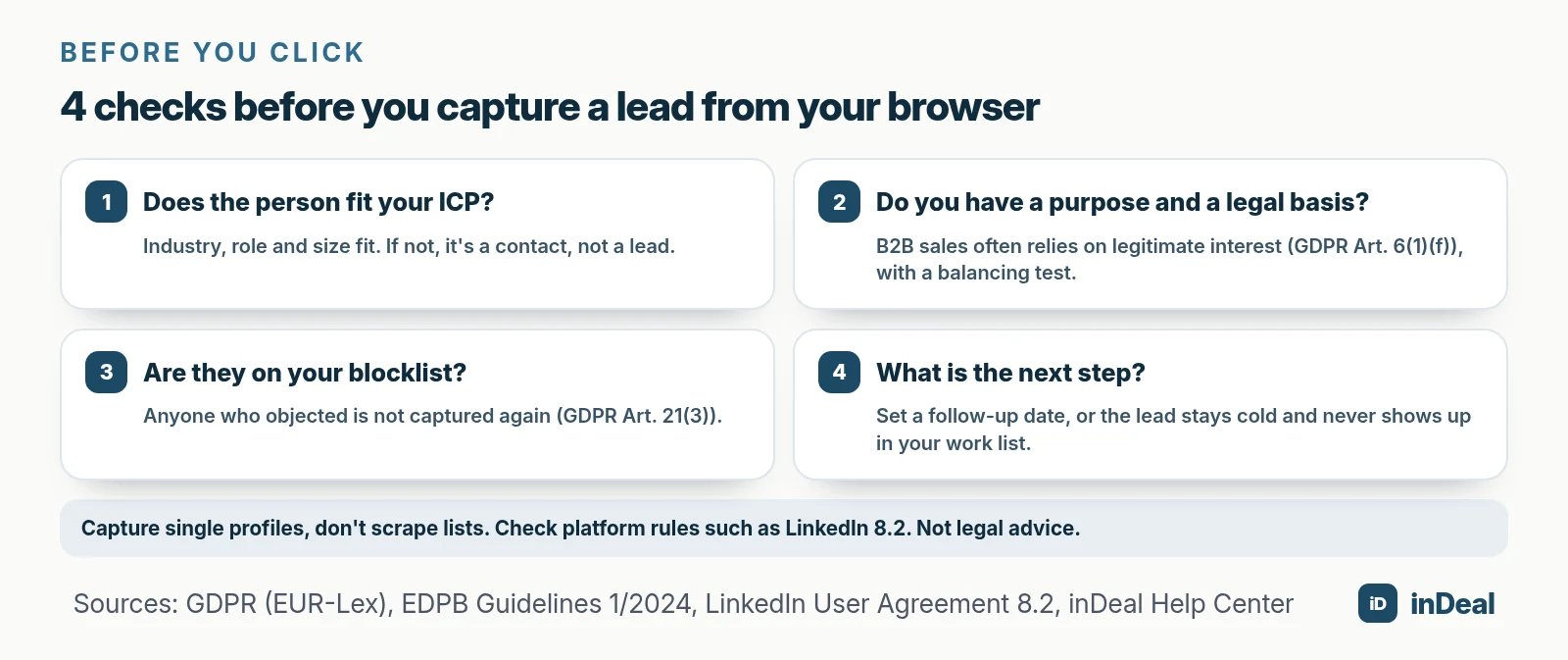
It can be, if you have a clear purpose, a legal basis and a clean process. Publicly visible doesn't mean free to use: profile data on websites and platforms is still personal data.
The GDPR applies whenever you process personal data of people in the EU. The key points (EUR-Lex):
- Legal basis: B2B sales often relies on legitimate interest under Art. 6(1)(f). The EDPB describes three tests: a legitimate interest, necessity and a balancing of the person's interests (EDPB Guidelines 1/2024).
- Data minimization: capture only what you need for sales (Art. 5(1)(c)). Hobbies and private details don't belong in your CRM.
- Duty to inform: if you didn't collect the data from the person, you must inform them under Art. 14, at the latest when you first contact them.
- Right to object: once someone objects to direct marketing, you can no longer use their data for it (Art. 21(3)).
In 2026, the EDPB also published guidelines on web scraping, meaning automated extraction of web pages. They target generative AI training and are still a consultation draft. But they make clear that the GDPR applies as soon as scraping collects and stores personal data (EDPB Guidelines 03/2026).
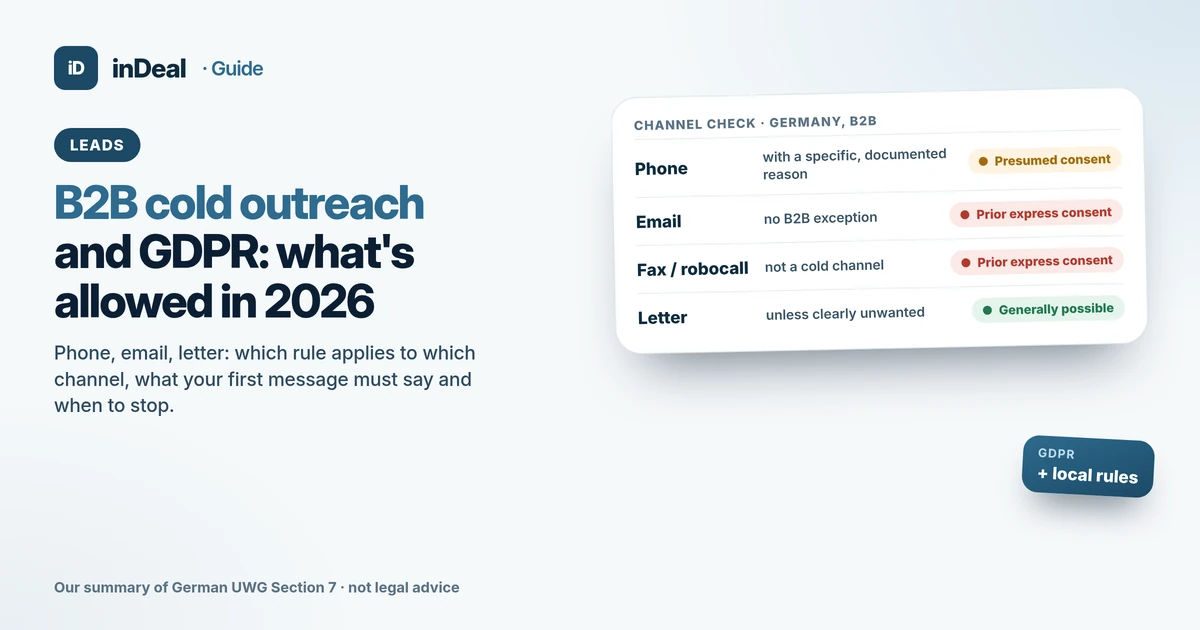
Outreach has its own rules. In Germany, for example, section 7 of the Act against Unfair Competition (UWG) generally requires prior express consent for email advertising, and at least presumed consent for sales calls to businesses (UWG, English translation). A lead in your CRM is not permission to email them. More in B2B Cold Outreach and GDPR.
Are Chrome extensions safe for your customer data?
As safe as the vendor behind them and your rules for using them. Extensions can read the content of web pages, so a poorly built or malicious one puts customer data and logins at risk.
Germany's Federal Office for Information Security (BSI) treats extensions like any other software in its minimum standard for web browsers. Installing extensions on work computers must be governed by rules and should be managed centrally. Users should only be allowed to install extensions from a central allowlist (BSI, requirement WB.2.3.03). The standard is written for German federal agencies, but it's a good benchmark for any team.
For small teams without an IT department, five rules go a long way, in line with the tips from the Hessen consumer portal:
- Install only from the official store, and only from vendors you trust.
- Install only what you actually need: every extension is one more door.
- Remove extensions you don't use and keep the rest up to date.
- Keep a list of approved extensions for your team, even if it's just a shared doc.
- One login per person: everyone signs in with their own CRM account, no shared logins. The inDeal extension signs you in with a numeric code sent by email.
What happens after capture so the lead doesn't go cold?
You set a dated next step right away. A lead without a date is just a database entry, not part of your sales process.
In inDeal, a captured lead lands on the stage Qualify and is assigned to you. Without a follow-up date it counts as cold: it doesn't appear in Open leads, only in All leads (Open leads and All leads). The same rule applies to the extension, imports and leads you add by hand.
A good next step is specific and checkable: "comment on the post and send a connection request", "call back about the form inquiry", "send the case study on topic X". To turn this into a process for every lead, see Lead Management for Small Business. For follow-up timing, read Sales Follow-Up.
What mistakes should you avoid when capturing leads from the browser?
Most mistakes don't cost you data, they cost you meetings. These six are common:
- Capturing everything that looks interesting: without checking against your ideal customer, your CRM fills up with contacts who never buy. See Lead Qualification with BANT.
- No source: without lead_source or a note, you won't know which channels work.
- No date: the lead drops out of your work list.
- Duplicate records: every channel creates its own entry. Make sure your CRM matches duplicates by email or profile URL.
- Ignoring your blocklist: people who objected end up in the system again.
- Bulk extraction: tools that copy entire lists or search results often break platform rules and raise your privacy risk.
Which way to capture leads from your browser is right for you?
The one that fits your source and gives every lead a next step. For most small teams, that's a mix of a lead plugin, a form connected via API and the occasional CSV import.
| Your situation | Recommendation |
|---|---|
| You research individual decision-makers on LinkedIn | Chrome lead plugin, one profile at a time |
| Your website brings in inquiries | connect the form via API, include source and date |
| You find contacts on company websites | add by hand, note the source |
| You have a trade show list | CSV import with preview and duplicate check |
| Your team installs extensions at will | set up a list of approved extensions |
| Your leads still live in a spreadsheet | import first, then capture new leads directly, see Manage Leads in Spreadsheets |
Start small: install one extension, set a rule for follow-up dates and check after two weeks how many captured leads turned into meetings. For what an AI CRM can do on top, read AI CRM for Small Business; for free options, see Free CRM for Small Business.
A free CRM for your whole team. Start inDeal in 2 minutes. Just an email address, no credit card to sign up, unlimited users.
Start freeKeep reading
- How to Add LinkedIn Contacts to Your CRM: 4 Ways (2026)
- Lead Management for Small Business (2026): Process and KPIs
- AI CRM for Small Business: What It Can Do in 2026
- Free CRM for Small Business (2026): Which One Fits Your Team?
- B2B Cold Outreach and GDPR (2026): What's Allowed
Frequently asked questions
How do I capture leads directly from Chrome?
Does the inDeal Chrome extension work on any website?
Is a Chrome lead capture extension free?
Is it legal to save contact details from a browser into a CRM?
Are Chrome extensions a security risk for my business?
How do I send website form leads to my CRM automatically?
Why doesn't a captured lead show up in my work list?
Is inDeal the same as indeal.io?
Sources
- E-business integration
- Social media – statistics on the use by enterprises
- Minimum Standard for Web Browsers, version 3.0, requirement WB.2.3.03 Extensions (German)
- How safe are browser extensions? (German)
- Regulation (EU) 2016/679 (General Data Protection Regulation), Art. 5, 6, 14 and 21
- Guidelines 1/2024 on processing of personal data based on Article 6(1)(f) GDPR
- Guidelines 03/2026 on web scraping in the context of generative AI (version 1.0, public consultation)
- Act against Unfair Competition (UWG), English translation, section 7
- User Agreement, section 8.2
- The Chrome extension
- inDeal API: create and update leads via the interface
- Creating, importing and enriching leads
- Managing the blacklist
- Open leads and All leads
- inDeal: home page, pricing and FAQ
inDeal is the AI CRM for small and mid-sized B2B companies.
Keep reading
 Leads and enrichment
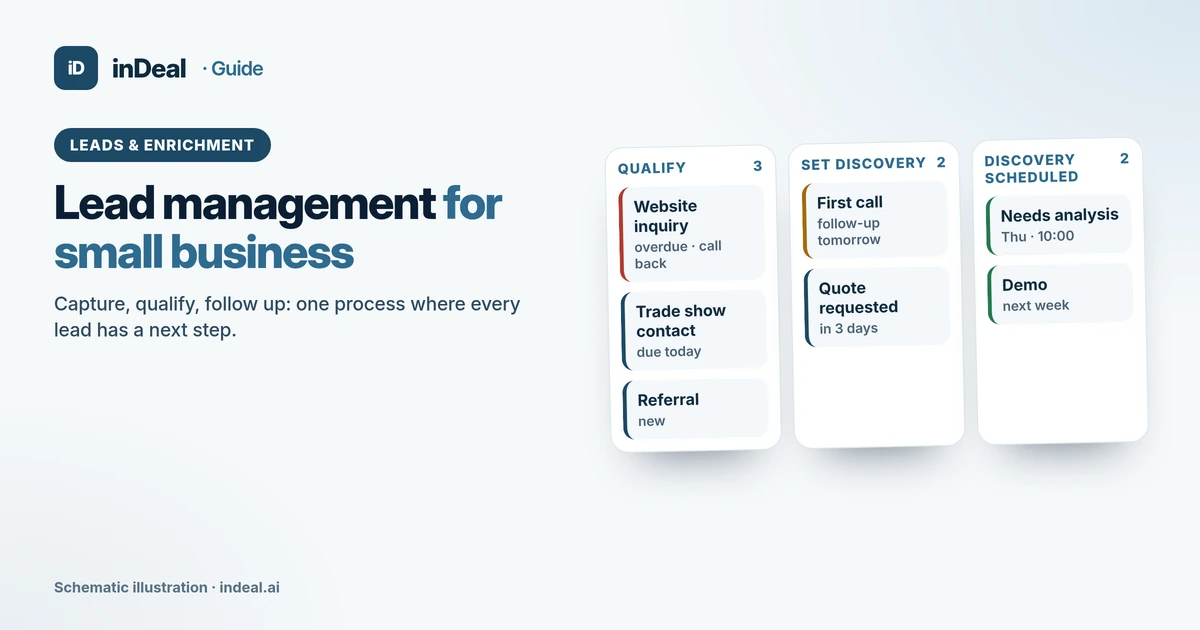
Lead Management for Small Business (2026): Process and KPIs
Lead management for small business: a 6-step process from capture to deal, response time, follow-up rules, KPIs, GDPR basics and a free CRM to run it all.
 Leads and enrichment
B2B Cold Outreach and GDPR (2026): What's Allowed
Is B2B cold outreach legal under GDPR? Channel rules for email and calls, Article 14 notices, objections, plus how UK PECR and US CAN-SPAM compare.
 Leads and enrichment
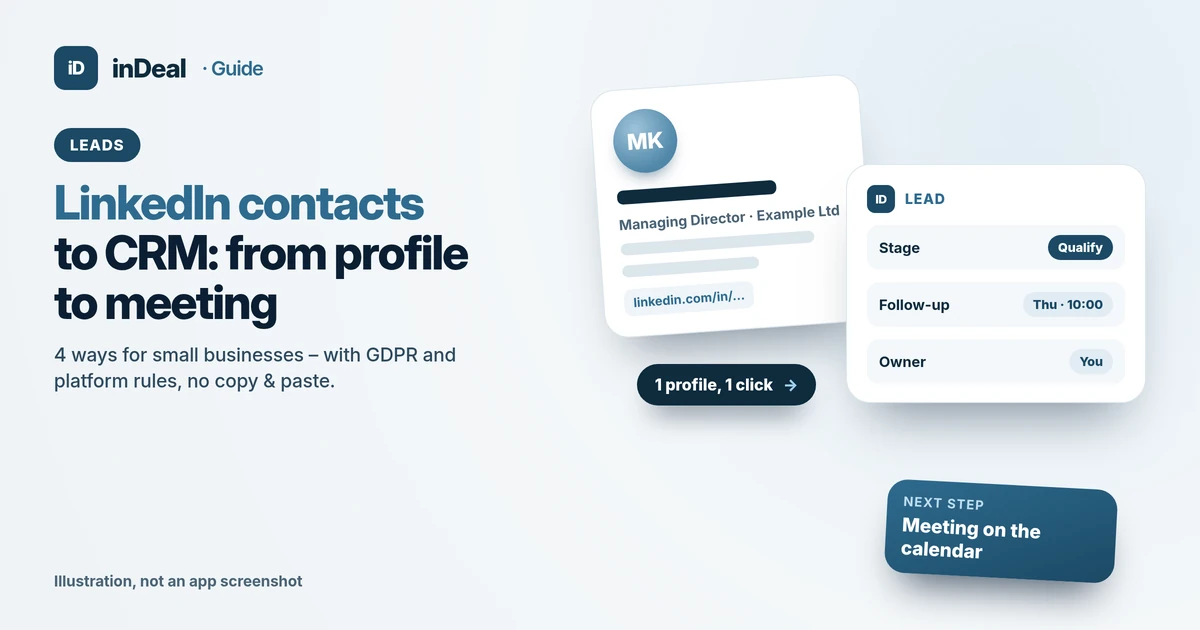
How to Add LinkedIn Contacts to Your CRM: 4 Ways (2026)
LinkedIn contacts to CRM: data export, CSV import, Chrome extension or campaign sync – with a GDPR check and a free CRM for small businesses.