Contents
- How do you add LinkedIn contacts to a CRM?
- Why should LinkedIn contacts live in your CRM?
- What LinkedIn data can you legally store in a CRM?
- How do you export LinkedIn connections to a CSV?
- How do you capture a single contact with the Chrome extension?
- When is a campaign connection better than one-by-one capture?
- How do you avoid duplicates and contacts you shouldn't reach out to?
- What happens after the import so a contact turns into a meeting?
- Which mistakes cost you meetings when moving LinkedIn contacts?
- Which method is right for you?
- Keep reading
- Frequently asked questions
- Sources
You can move LinkedIn contacts to CRM software in four ways: export all your 1st-degree connections as a CSV through LinkedIn's official data export, add single profiles by hand or with a browser extension, or sync running campaigns through a connection to your outreach tool. The method matters less than one rule: every contact gets a next step with a date. inDeal (indeal.ai) is a free AI CRM for small businesses from Lars Krüger GmbH, Berlin. Not to be confused with indeal.io, a different company.
As of October 21, 2026. Platform rules: LinkedIn User Agreement (effective November 3, 2025) and LinkedIn Help; law: GDPR (EUR-Lex), EDPB Guidelines 1/2024, German UWG section 7; market: Eurostat 2025; product: success.indeal.ai and indeal.ai. Not legal advice.
How do you add LinkedIn contacts to a CRM?
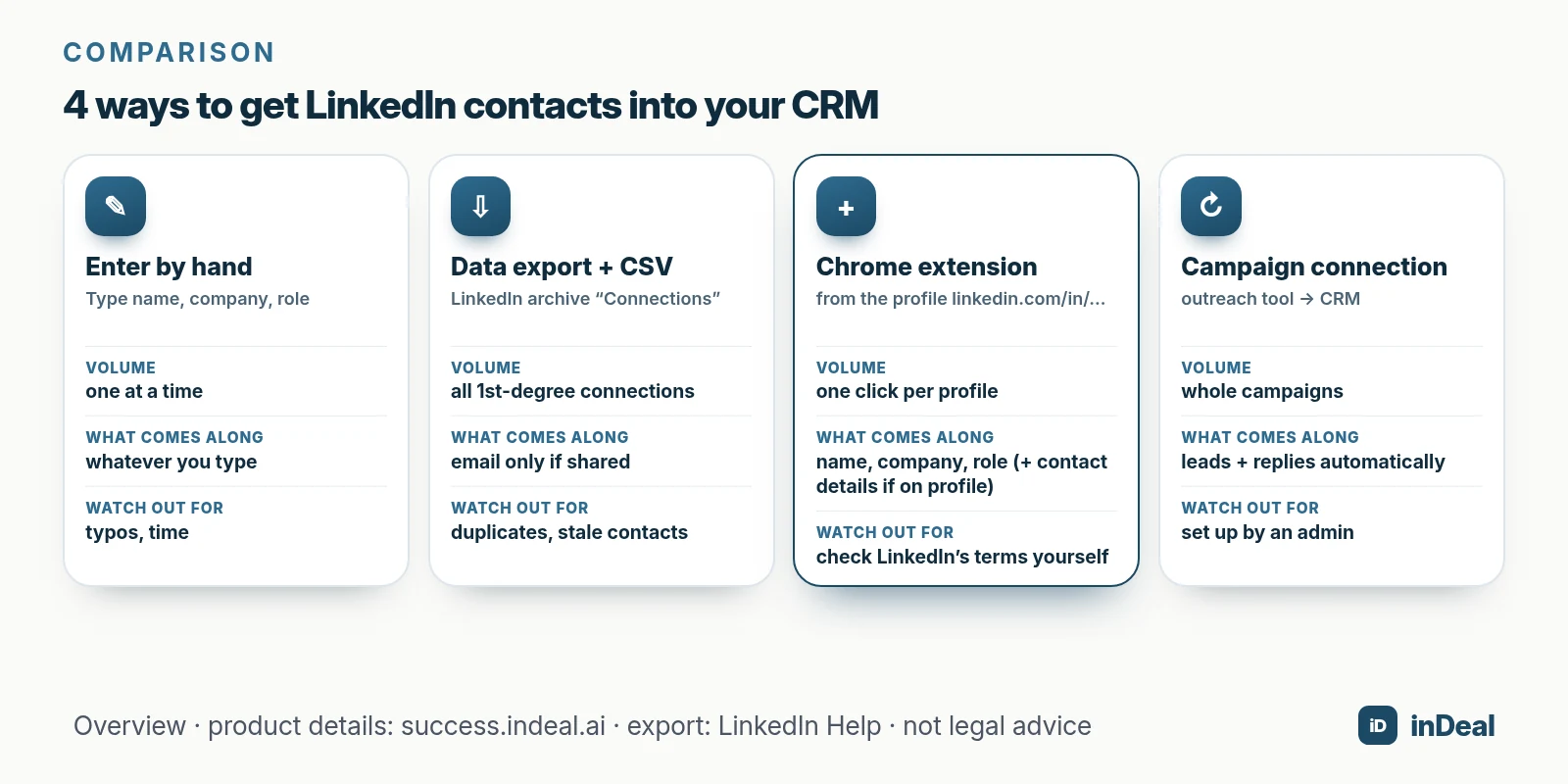
Pick the method by volume: bring in many existing connections with a data export and CSV import, add new individual contacts by hand or with an extension, and let campaign contacts sync automatically. Most small teams end up combining two of these.
| Method | Volume | What comes along | Effort | Watch out for |
|---|---|---|---|---|
| Enter by hand | one at a time | whatever you type | high per contact | typos, no next step |
| LinkedIn data export + CSV import | all 1st-degree connections | name, company, position, email only if shared | once, then upkeep | duplicates, stale contacts |
| Browser extension | one click per profile | name, company, role, contact details if on the profile | low | check LinkedIn's terms yourself |
| Campaign connection | whole campaigns | leads and replies automatically | one-time setup | needs an admin |
A CRM (customer relationship management system) is where every contact has a status, an owner and a next step. That's exactly what LinkedIn itself doesn't give you: you see messages and profiles, but no pipeline. What an AI-assisted CRM looks like for a small team is covered in AI CRM for small business.
Why should LinkedIn contacts live in your CRM?
Because a LinkedIn connection is not a meeting. Without a CRM, conversations get buried in your inbox, follow-ups depend on memory, and when a colleague takes over, they start from zero.
The gap is widest in small companies. According to Eurostat, 60.59% of small EU enterprises (10–49 employees) used social media in 2025. Only 24.69% of them used CRM software the same year (Eurostat).
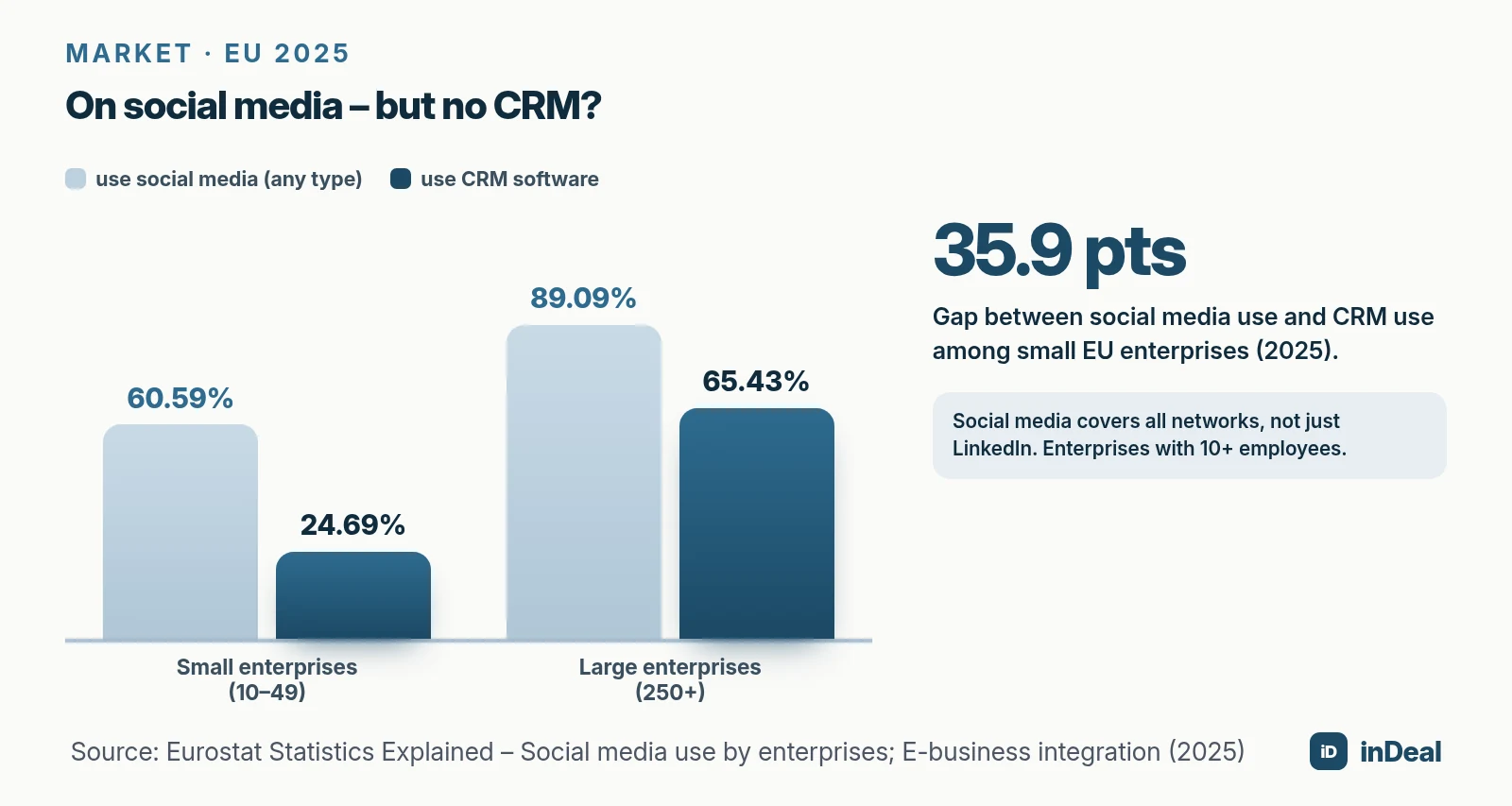
These figures cover all social media, not just LinkedIn, and enterprises with 10 or more employees. The pattern is still clear: contacts start online, while follow-up stays manual.
You rarely notice the cost right away. A lead who wrote “reach out in the fall” three weeks ago won't come back on their own. If they're in your CRM with a date, you call in the fall – if not, you'll read on LinkedIn later that someone else won the project.
What LinkedIn data can you legally store in a CRM?
Store only what you actually need for your sales purpose, and follow the GDPR and the platform's rules. In practice: name, company, role, profile URL and a note on why you're reaching out – not a full copy of the profile.
The key GDPR rules for this case apply to anyone processing data of people in the EU:
- Legal basis: In B2B sales, legitimate interest under Art. 6(1)(f) is often considered. It requires a documented balancing test against the person's interests; the EDPB's Guidelines 1/2024 explain how.
- Data minimization: Art. 5(1)(c) requires data to be limited to what's necessary.
- Transparency: If you didn't collect the data from the person directly, Art. 14 requires you to inform them – and if you use it to contact them, at the latest at the time of the first communication (Art. 14(3)(b)).
- Right to object: People can object to direct marketing at any time under Art. 21(2) and (3); after that, you stop.
If you contact people in Germany, the German Act against Unfair Competition (UWG), section 7 also applies: marketing emails generally need prior express consent, and marketing calls to businesses need at least presumed consent. An email address in your LinkedIn export is not consent to marketing emails. For other countries, check your local rules.
How do you export LinkedIn connections to a CSV?
Use the data export in your LinkedIn settings: you request an archive that includes the list of your 1st-degree connections and get a download link by email. That's the route LinkedIn itself describes in its Help Center.
- Click the Me icon at the top of your LinkedIn homepage and select Settings & Privacy.
- Click Data privacy on the left.
- Under How LinkedIn uses your data, click Get a copy of your data.
- Select the larger data archive that includes connections, then Request archive.
- Open the link in the email sent to your primary address and download the file.
LinkedIn names three limits itself: email addresses only appear for connections who allowed their connections to see or download them. You can't export contacts who aren't 1st-degree connections. And the CSV format doesn't support every character set, such as Chinese, Japanese or Hebrew.
How do you import the CSV into inDeal?
In inDeal, the import lives in Setup under Lead import and requires permissions – with the Sales role it isn't visible (creating, importing and enriching leads). You map each column to a field, ignore it, or attach it as a note. At least a first or last name, an email or a LinkedIn URL must be mapped.
Before anything is saved, Show preview tells you how many leads will be created, filled, left unchanged or skipped. How to clean up the file first is covered in manage leads in spreadsheets.
How do you capture a single contact with the Chrome extension?
The inDeal extension pulls a contact into inDeal straight from their LinkedIn profile page, without retyping anything (the Chrome extension). Everyone on the team can use it, whatever their role.
- Install: in Setup under Extension, or at the bottom left of the sidebar via Install Chrome plugin; the link opens the Chrome Web Store.
- Sign in: with the numeric code from your email – using the same address as in inDeal.
- Open a profile: a profile page with an address like linkedin.com/in/…
- Capture: click Import to inDeal. Name, company and role become a lead; contact details on the profile such as landline, mobile or email come along.
It doesn't work from Sales Navigator lists or search results; the extension shows no panel there. That fits the core rule of this guide: one profile, one deliberate decision. The extension can't read what isn't on the profile – fill in missing details by hand or with Enrich data.
On cost, indeal.ai says installing the lead plugin costs €0. You need credits for data enrichment and for capturing leads with the Chrome plugin; capturing by hand and by CSV is free.
When is a campaign connection better than one-by-one capture?
As soon as you stop finding LinkedIn contacts one at a time and start reaching out through running campaigns. Clicking each profile is too slow then, and replies should land on the lead automatically.
In inDeal, Integrations has one card for PROSP (LinkedIn campaigns) and one for PlusVibe (email campaigns); an admin sets them up (integrations overview). Campaigns then appear in inDeal, their leads are imported, and replies arrive through a webhook.
| Criterion | Extension | Campaign connection |
|---|---|---|
| Trigger | you click | automatic |
| Volume | one at a time | whole campaigns |
| Who uses it | everyone on the team | set up once by an admin |
| Typical case | a contact you happen to come across | ongoing outreach |
The extension is for finds, the connection is for campaigns – running both is the normal case, according to the Help Center.
How do you avoid duplicates and contacts you shouldn't reach out to?
With two tools: one unique identifier per contact and a well-kept block list. The LinkedIn profile URL works well as the identifier because, unlike company or job title, it rarely changes.
- Duplicates: On import, inDeal recognizes a lead you already have by its email or LinkedIn URL. With Fill empty fields, the import only fills empty fields; whatever is already there stays.
- Block list: On the blacklist you block email addresses, domains, companies or single LinkedIn profiles – competitors, existing customers, or people who don't want to be contacted.
- Effect: The browser extension doesn't create blocked profiles and uses no credits for them; the CSV import skips blocked rows.
Anyone who objects under Art. 21 GDPR goes on that list right away. That way they won't end up in your outreach again after the next export.
What happens after the import so a contact turns into a meeting?
The import is only the start: every contact needs a status, a follow-up date and a first message that's relevant to them. Otherwise you just have a spreadsheet with a nicer interface.
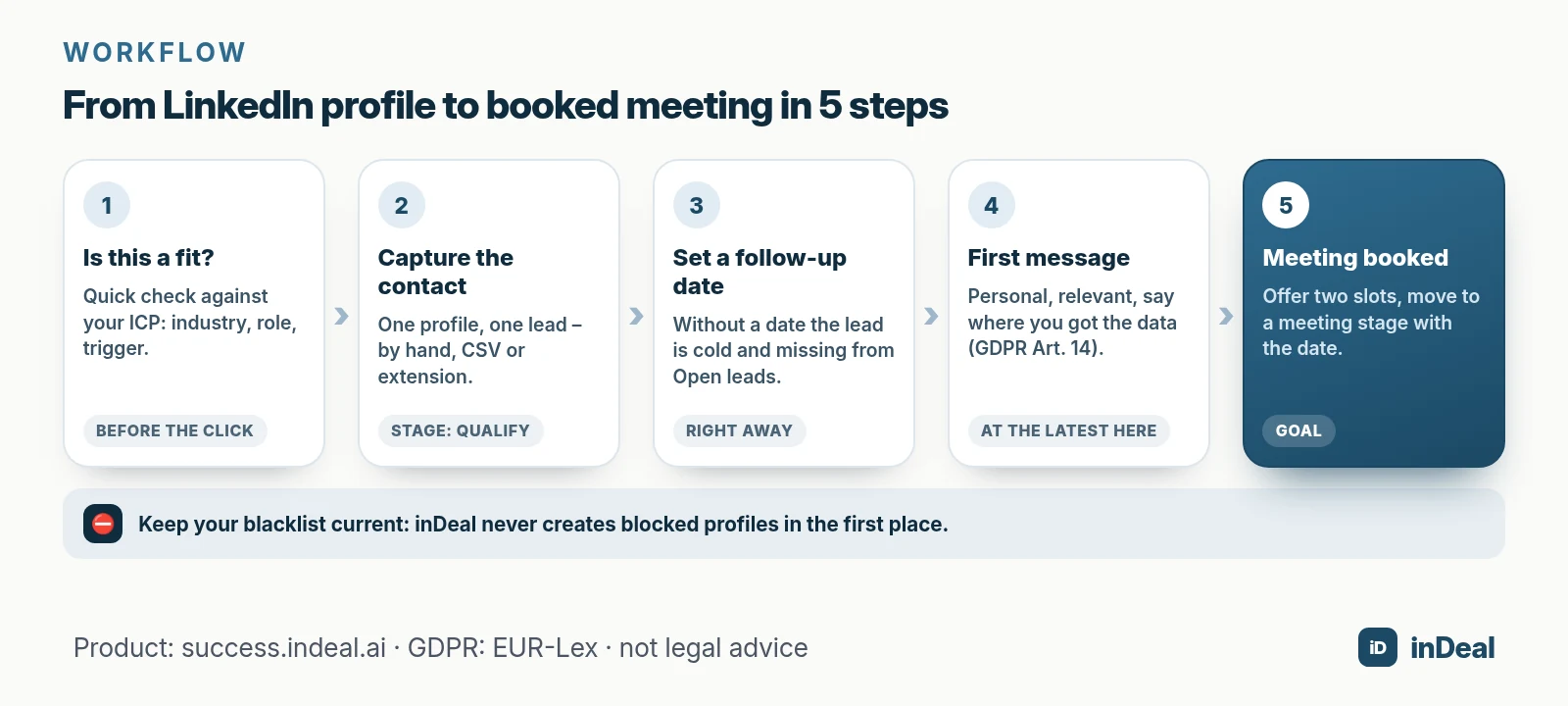
- Is this a fit? Run a quick check against your ideal customer profile (ICP): industry, role, current trigger. Lead qualification with BANT shows how to structure it.
- Capture: A lead captured with the extension lands in inDeal on Qualify and is assigned to you.
- Set a follow-up date: A lead on Qualify with neither a follow-up date nor a sentiment counts as cold and doesn't appear in Open leads, only in All leads (open leads and all leads). The same goes for imports.
- First message: personal, specific, and telling them where you got their details. You can set an email reminder for yourself on the follow-up date in 15-minute steps (follow-up with reminder).
- Meeting booked: offer two concrete slots and move the lead to the matching meeting stage.
How to stay on it without being pushy is covered in sales follow-up. If you'd rather hand off the work before the meeting: indeal.ai also offers a meeting agent as an add-on; the CRM stays free with or without it. What such an agent is and which rules apply is explained in AI appointment agent.
Which mistakes cost you meetings when moving LinkedIn contacts?
Most mistakes don't happen during the import but before and after it. These six come up again and again in small B2B teams:
| Mistake | Result | Better |
|---|---|---|
| Importing the whole export unfiltered | Full pipeline, empty calendar | Filter by target customer first |
| No follow-up date after import | Leads go cold and miss your daily list | Set a date when you add the lead |
| Copying the entire profile | More data than needed, GDPR risk | Name, company, role, profile URL, reason |
| Emailing export addresses right away | Marketing email without consent (UWG in Germany) | Clarify legal basis and channel first |
| Bulk-extracting profiles with a tool | Breach of LinkedIn's terms, account risk | Capture one at a time, deliberately |
| Not logging objections | Person gets contacted again | Add them to the blacklist immediately |
Which method is right for you?
Start with the method that matches your volume and expand later. More important than the tool is the rule: no contact without a next step.
| Situation | Recommendation |
|---|---|
| Hundreds of 1st-degree connections and no CRM yet | One data export, filter, CSV import |
| A few new, well-fit contacts every week | Capture one at a time, by hand or with the extension |
| You reach out to whole lists through an outreach tool | Campaign connection, set up by an admin |
| Several people on the team work LinkedIn | Shared CRM without per-user fees, plus one blacklist |
| You're unsure what you're allowed to store | Clarify the legal basis first, then import |
Your customers don't want a CRM – they want conversations that turn into deals. A CRM is simply the place where no LinkedIn contact gets lost again. The full process behind it is in CRM sales process, and free CRM for small business helps you pick a free CRM that fits.
A free CRM for your whole team. Start inDeal in 2 minutes. Just an email address, no credit card to sign up, unlimited users.
Start freeKeep reading
- AI CRM for Small Business: What It Can Do in 2026
- Free CRM for Small Business (2026): Which One Fits Your Team?
- Manage Leads in Spreadsheets: When Excel Is Enough
- Lead Qualification with BANT: Small Business Guide 2026
- GDPR-Compliant CRM 2026: EU Hosting Checklist
Frequently asked questions
How do I get my LinkedIn contacts into my CRM?
Can I export my LinkedIn connections to a CSV?
Why are email addresses missing from my LinkedIn export?
Is it GDPR compliant to store LinkedIn contacts in a CRM?
Are Chrome extensions for LinkedIn allowed?
How does the inDeal Chrome extension work?
Does it cost anything to add LinkedIn contacts to inDeal?
Is inDeal the same as indeal.io?
Sources
- User Agreement, section 8.2
- Export connections from LinkedIn
- Regulation (EU) 2016/679 (General Data Protection Regulation)
- Guidelines 1/2024 on processing of personal data based on Article 6(1)(f) GDPR
- Act against Unfair Competition (UWG), English translation, section 7
- Social media – statistics on the use by enterprises
- E-business integration
- The Chrome extension
- Creating, importing and enriching leads
- Open leads and All leads
- Managing the blacklist
- Integrations overview
- Follow-up with reminder
- inDeal: homepage, pricing and FAQ
inDeal is the AI CRM for small and mid-sized B2B companies.
Keep reading
 Leads and enrichment
Spreadsheet vs. CRM: When Small Businesses Should Switch
Spreadsheet vs. CRM for small business: 7 criteria, a four-question decision tree and a CSV migration path so your sales team stops losing leads.
 Leads and enrichment
Lead Qualification with BANT: Small Business Guide 2026
Lead qualification with BANT for small business: budget, authority, need, and timing questions, BANT vs. MEDDIC and CHAMP, and how to map it to CRM stages.
 Leads and enrichment
Manage Leads in Spreadsheets: When Excel Is Enough
Manage leads in a spreadsheet: when Excel works, five limits (history, follow-up, multi-user, enrichment, GDPR), a column template, and CSV import into inDeal.